

On this page
You can make AI videos on your Mac with Off Grid AI Desktop (OGAD). Describe a scene, press Make it, and Wan 2.2 renders a 5-second clip on your Mac’s own GPU. There are no credits to buy, and no prompt or photo leaves your Mac.
Get Pro for $34.99 once · Download Off Grid AI
Why make video on your own Mac
Cloud video apps sell credits, and a few retries can burn through a month of them. Every prompt and every photo you give them sits on their servers.
With OGAD the model is a one-time download. A retry costs you a few minutes of your Mac’s time, and the clip saves as an MP4 on your own disk. Video is part of Off Grid AI Pro, and it shipped in OGAD 0.0.56 on 4 November 2026.
What you need
- A Mac with Apple silicon and 16 GB of memory or more. The smallest Wan 2.2 build lists 12 GB.
- OGAD 0.0.56 or newer with Pro. $34.99 once, a limited-time price down from $119, or $7.99 a month.
- About 8.2 GB of free disk for Wan 2.2 (5B), Turbo, and internet once for that download.
The video models your Mac can run
Open Models, then the Video tab. These are the Wan builds that have finished clips on a Mac:
| Model | Download | Memory guidance | Starts from a photo |
|---|---|---|---|
| Wan 2.2 (5B), Turbo | About 8.2 GB | 12 GB | Yes |
| Wan 2.2 (5B), Light | About 7.9 GB | 24 GB | Yes |
| Wan 2.2 (5B) | About 10.4 GB | 24 GB | Yes |
| Wan 2.1 (1.3B), Light | About 4.7 GB | 16 GB | No |
| Wan 2.1 (1.3B) | About 5.5 GB | 16 GB | No |
Downloads include the text encoder and VAE that come with each model. The Wan models share one text encoder, so your second one downloads less.
Start with Wan 2.2 (5B), Turbo. It’s distilled to 8 steps, and Off Grid AI’s catalog notes about 96 seconds for a clip at 480 × 832 on an M2 Mac, where the 20-step Wan 2.2 took about 25 minutes on the same machine. It also starts from a photo and powers Extend, which Wan 2.1 can’t do.
On a Mac with 24 GB or more, the full Wan 2.2 (5B) is there when you want the original model. The same tab also lists larger LTX and HunyuanVideo packs for Macs with 32 GB or more, but Off Grid AI hasn’t confirmed a finished clip with those on a Mac yet, so stick with Wan.
Make your first clip
- Install OGAD from the Mac download page and turn on Pro.
- Open Video in the sidebar. If you have no video model yet, the bar shows Get the video model. You can also download one from Models > Video.
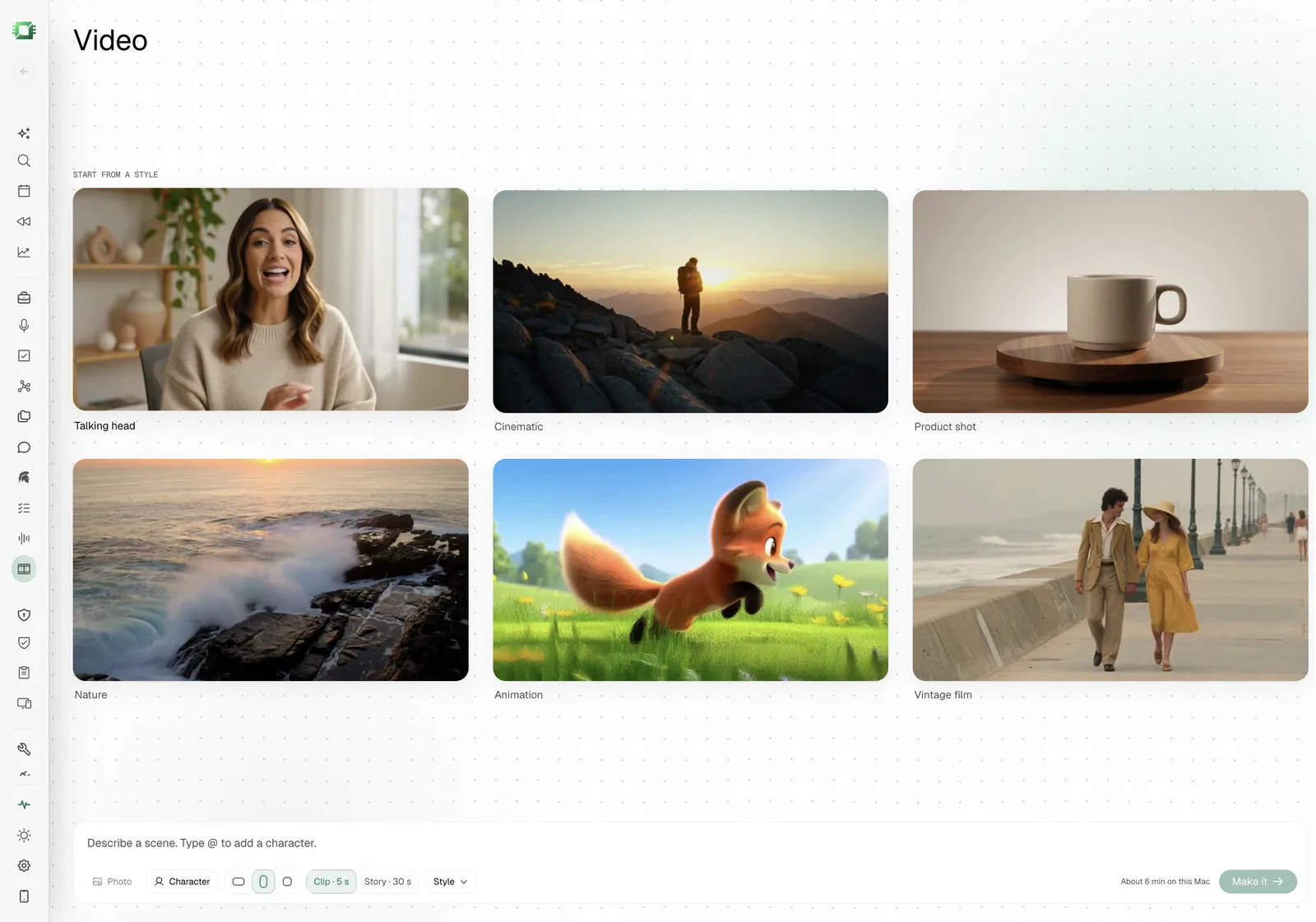
- Pick a card under Start from a style: Talking head, Cinematic, Product shot, Nature, Animation or Vintage film. Each one adds its look to your prompt.
- Describe the scene. “A red fox trots through fresh snow at dusk, low camera, breath in the cold air” beats “a fox”. Say what moves and how the light falls.
- Choose a shape (Landscape, Portrait or Square) and leave the length on Clip · 5 s.
- Check the estimate, such as “About 6 min on this Mac”, and press Make it.
Your newest videos sit in the side panel. Your videos keeps every clip, grouped by when you made it. Pick Story · 30 s instead of a clip and OGAD plans six shots from your one sentence and renders them as a short film.
Make a video straight from chat
You don’t have to open the Video screen. In any chat, type “Create a video of a paper boat drifting on a pond” and press Enter. OGAD sends it straight to your video model and the clip plays in the chat. The chat model never loads for it, so it isn’t holding memory the video needs.
A question about video, such as “which video model should I use?”, stays a normal chat reply. You can also click Video under the message box to make every message a clip.
Extend, save and share a clip
Every clip plays in the same player, in chat or on its own page, with speed, picture in picture and mute. Under it you get Extend, Save as MP4, Share and Delete.
Extend carries the clip on from its last frame. It asks one question, What happens next? Type the next beat, such as “the fox stops and looks at the camera”, or leave it blank to keep the motion going. Extend needs a Wan 2.2 model, so if you only have Wan 2.1, it offers the download first and picks up when it’s done.
Save as MP4 puts a normal video file wherever you choose, ready for any editor or social app. Delete asks first, because it removes the clip from all your devices.
Bring a photo to life
Click Photo in the prompt bar and pick a JPEG or PNG. Describe the motion, or leave the box empty and OGAD uses “Bring this photo to life”. Tick Use photos of yourself or people who agreed., then press Make it.
This needs a Wan 2.2 model. The photo stays on your Mac, because your Mac does the rendering.
FAQ
Can I make AI videos on my Mac without credits? Yes. Off Grid AI Pro renders clips with the open Wan models on your Mac’s own GPU. There is no credit meter, so a retry costs you time and nothing else.
How much memory does my Mac need for AI video? Wan 2.2 (5B), Turbo lists 12 GB, so a 16 GB Mac is the place to start. Wan 2.1 (1.3B) lists 16 GB, and the full and Light Wan 2.2 (5B) builds list 24 GB. An 8 GB Mac is below every video model’s guidance.
How long does an AI video take on a Mac? Off Grid AI’s catalog notes about 96 seconds for a Wan 2.2 Turbo clip at 480 × 832 on an M2 Mac, where the 20-step Wan 2.2 took about 25 minutes. The Video screen shows its own estimate for your Mac before you press Make it.
Can I turn a photo into a video on my Mac? Yes, with any Wan 2.2 model. Click Photo on the Video screen, pick a JPEG or PNG, and describe the motion or leave it blank. The photo stays on your Mac.
Is AI video free in Off Grid AI? Video is part of Off Grid AI Pro, at $34.99 once or $7.99 a month. The free app makes images, chats and transcribes with no payment.
Related guides
- How to make AI videos on your own computer or phone in 2026
- How to make AI videos on your Android phone in 2026 (Wan 2.2)
- How to make AI videos on your iPhone in 2026 (Wan 2.2 Turbo)
- How to run local AI on your Mac in 2026
Get Off Grid AI Pro and make your first clip on your Mac tonight.