On this page
Keep a record of the discussion while you take part. OGAD (Off Grid AI Desktop) Pro in beta 114 includes a Linux meeting recorder and local transcription path. Prepare the audio and capture setup, then use local speech and text models to turn a saved recording into notes.
| Download OGAD | Get beta 114 |
What would you like to do with Off Grid AI?
Have a feature or use case you would like us to support? Tell us what you want to do and which device you use.
Write to support@offgridmobileai.co, join our Slack community, or talk to us on Reddit.
What must be ready on Linux?
Use the x64 Linux AppImage or deb from beta 114 with Pro active. In Models > Transcription, download and activate a local speech model. In Models > Text, select a downloaded local model for summaries. Initial downloads and licence setup need a connection.
The Linux recorder uses system audio and a separate microphone track. Its helper depends on Python, PyGObject, GStreamer, and the relevant capture and encoding plugins. On Wayland, screen selection uses the desktop portal and PipeWire. Your desktop session, audio devices, and installed components can affect the result.
Start with a short agreed call. Do not treat an open recorder as proof that both sides have been captured. Inform the other participants and obtain their agreement before recording. The recording can include visible screen content.
Make a two-sided sample
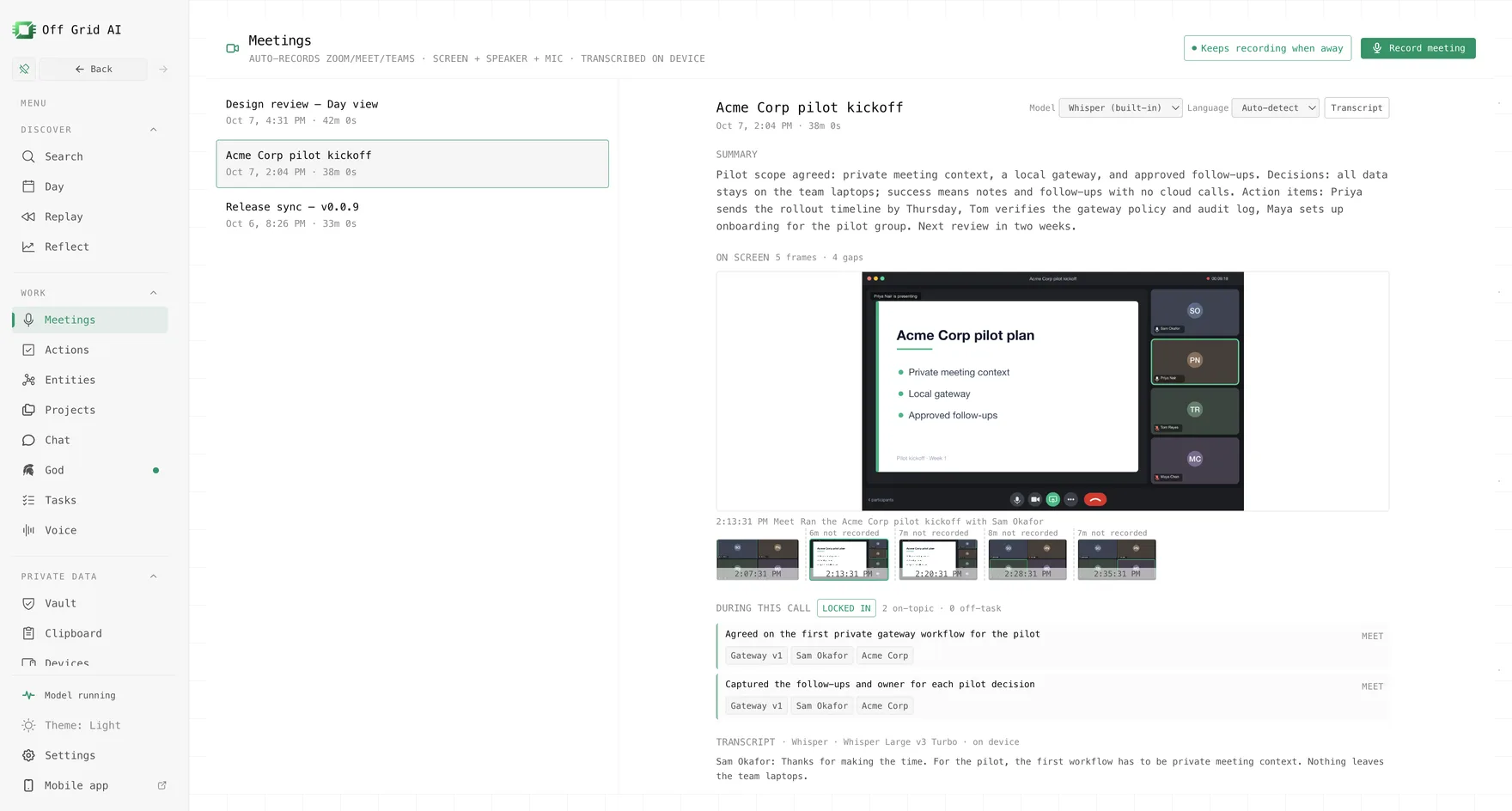
- Open Meetings with Pro ready.
- Select Record meeting if detection has not started recording.
- Complete the screen or window selection if your desktop portal asks for it.
- Check the visible recording state.
- Say one sentence through your microphone. Ask the other participant to say a different sentence through the call.
- Select Stop and wait for processing.
- Open the saved Transcript and Summary, and compare them with playback.
Use a small example: you propose a review date and the other person confirms a different date. The transcript should contain both statements. The summary should retain the final agreed date, not only your first proposal.
The system audio path captures the output device’s monitor. Changing output devices during a call can affect what is recorded. If one side is missing, resolve that source before making a longer recording. Changing the speech model cannot recover audio that never reached the saved media.
Choose the right local models
For a first multilingual sample, a local multilingual Whisper model is a useful starting point. An English-only model is not suitable for a French or Hindi call merely because you changed the interface language.
In Meetings, check the Language control. Use the intended language or automatic detection with a compatible model. Select a local text model for the generated recap too. A local speech model alone does not establish where every later processing step runs.
If recognition is poor, compare another downloaded model on the same saved recording. Export a transcript first if you want to retain a comparison. Re-transcribe replaces processed text and its generated summary. Retry transcription is available when a processing failure leaves no useful transcript.
Review decisions before you use the summary
Check names, numbers, deadlines, and assignments against the recording. A suggestion can be mistaken for a decision. Speaker lines separate broad audio sources; they do not prove that each remote participant was identified by name.
The summary works from a limited transcript input. Read later sections of a long call separately. You can use checked sections in a local chat to make a fuller recap, but keep their source and order clear.
Try this with a checked passage:
List the decisions and next actions in this passage. Keep a proposed date separate from a confirmed date. Mark any unnamed owner as not stated.
The output should help you review the call, not replace the source recording when a detail matters.
Control the end of recording
Use Stop when you finish. Beta 114 can also end a detection-started recording after presence is no longer confirmed. The default policy waits five minutes, warns for 20 seconds, then stops. A manually started recording follows the separate away-stop setting. A four-hour cap also applies.
This is not an exact timer tied to the call service. Check the visible state after the meeting ends. Keep enough disk space for the recording and do not leave an unnecessary capture running.
What does “without cloud processing” mean here?
With local speech and text models selected, OGAD processes the notes on your Linux computer. Zoom, Teams, or another call service still uses its normal network path. An online call is not an offline activity.
If the recorder fails, inspect its reported error and the Linux capture or audio component involved. On Wayland, check the portal selection. If only your microphone is present, check system audio. Check the local model only after the media itself is usable.
This guide covers OGAD beta 0.0.55-beta.114. The release and build record identify the desktop version and its included Pro code. Setup details follow that code; they are not a device test.
Download the Linux beta and confirm one two-sided sample before using local notes for a full meeting.