

On this page
If compatible AI models are already on your computer, you may not need another download or a second copy. OGAD (Off Grid AI Desktop) can scan additional folders and use compatible chat, image, voice, and transcription models where they already live.
Use Other model folders in Storage for this job. Adding a folder does not convert every file inside it into a supported model. The files must match formats and model types the app can use.
| Download OGAD | Desktop beta 122 release notes |
What would you like to do with Off Grid AI?
Have a feature or use case you would like us to support? Tell us what you want to do and which device you use.
Write to [email protected], join our Slack community, or talk to us on Reddit.
Choose scanning when the files should stay put
A scan folder is a place the app reads for compatible existing models. It is different from Model folder, which controls where new model downloads go.
This distinction is useful if you keep a shared collection on an external drive or already have large model files in a dedicated directory. Add that location instead of copying its contents into the app’s download folder.
The app also has model-import workflows, but importing and scanning are not interchangeable. This guide uses scanning specifically because you want the original files to remain in their present location.
Check the existing model files
Find the directory that contains the complete model files. Check whether the model requires companion files, such as an image projector for a vision model or a pack of files for a speech engine.
A single model weight may be enough for one text model and insufficient for another model type. Keep related files together according to the model’s supported layout. Do not rename unrelated files merely to make them resemble a recognized model.
If the collection is on an external drive, mount it before you open the app. Confirm that your account can read the directory. There is no need to grant write access to unrelated folders just to scan a model collection.
Add the folder in Storage
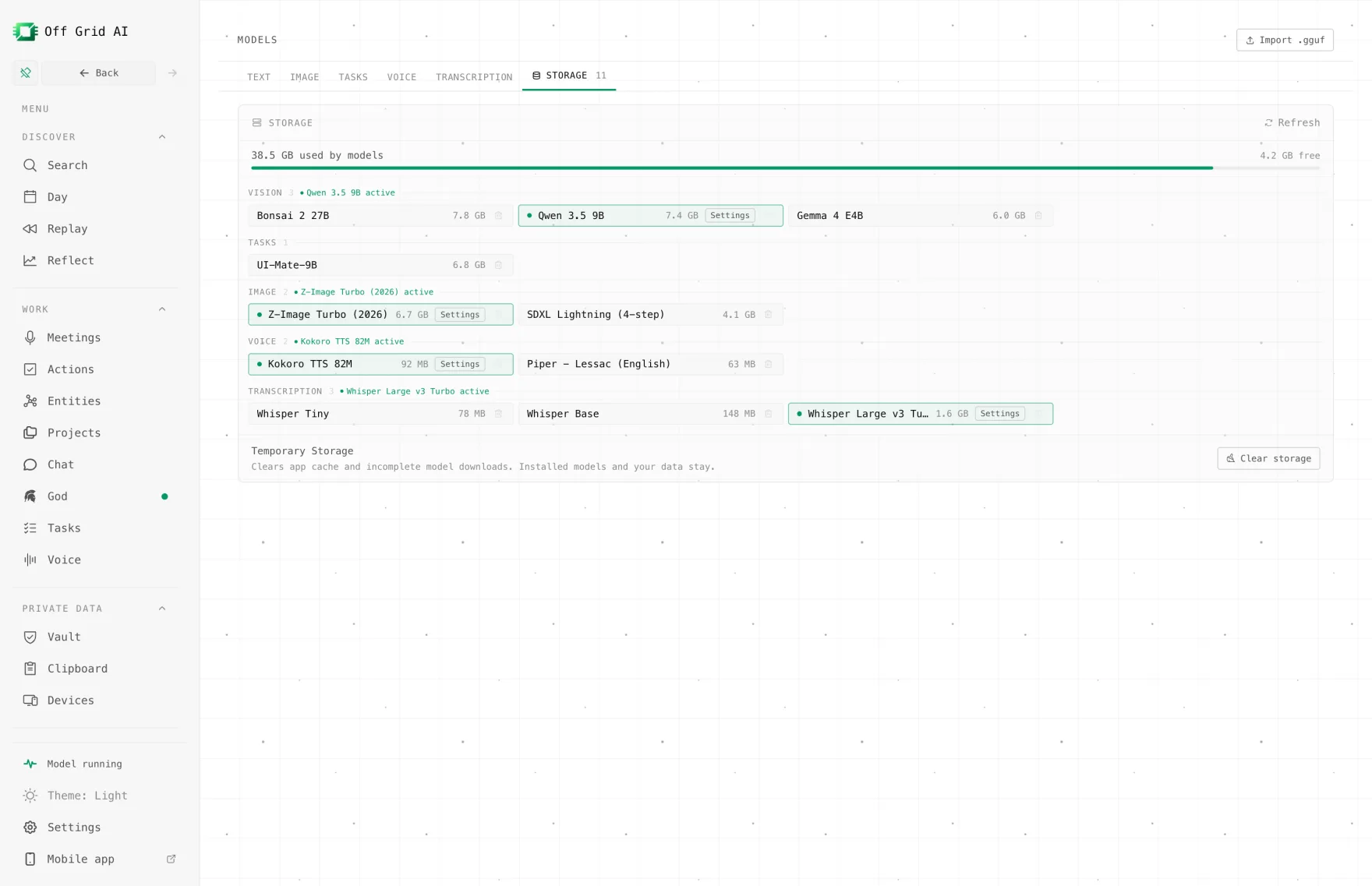
- Open Models and then Storage in OGAD.
- Find Other model folders.
- Choose Add folder.
- Select the directory that contains the models.
- Return to the relevant model list and use Refresh if needed.
- Inspect the compatible entries the app found.
You can add more than one folder. Use a small number of meaningful locations rather than selecting an entire disk and expecting every file to be useful.
The Storage view states that these files stay in their current folder. Adding the path is not a request to move the collection or change where all future downloads are saved.
Activate and test one model
Choose Use for a compatible model. Start with a short request appropriate to its type. For text, ask a simple question. For vision, attach a small image and ask for a description only after the required projector is available.
Check the selected model name before you interpret the result. If the app is still using a different local or remote model, a successful answer does not prove that the newly found files work.
For voice, image, or transcription models, use the relevant model settings and a small test in that feature. A text response cannot validate an image-generation pack, and a model appearing in the inventory is only the first step.
Understand what is and is not deleted
Removing a path from Other model folders removes that scan-folder reference. It does not delete the model files in that directory. This is useful when you temporarily disconnect a drive or no longer want the app to search that location.
Externally discovered models are treated as read-only by the model deletion path. That is different from app-managed or separately imported copies, whose deletion controls can remove their files. Check the model’s location and origin before using any delete action.
If you want to remove the original external files, do that deliberately through your file-management process after confirming that no other application needs them. Removing a scan reference is the appropriate action when your only goal is to stop using the folder in OGAD.
Fix models that do not appear
| Symptom | Useful check |
|---|---|
| No entries appear | Correct directory, readable files, and supported format |
| Text works but image input fails | Matching vision projector and selected model capability |
| Model worked yesterday | External drive mount and unchanged path |
| Duplicate-looking entries appear | Different quantizations, locations, or imported copies |
| Download is still requested | Required files missing or not recognized as a complete set |
A filename is not enough to prove compatibility. Different quantizations and model architectures can need different runtime support. Use the current beta release notes and the app’s own errors to identify the missing requirement rather than assuming a generic extension guarantees support.
Keep storage size separate from memory needs
Reusing files saves a duplicate copy on disk. It does not reduce the working memory needed to load a model. A large model can be present and correctly detected while still exceeding the available RAM for your intended context length.
Start with a model you know fits the computer. After that works, try larger choices one at a time and compare them on your actual task without claiming an unmeasured speed gain.
Add one existing model folder in OGAD, select a compatible entry, and check a real result. You can then keep using that same collection in place instead of downloading another copy.