

On this page
You can keep private notes on your iPhone and have them on your computer too, without iCloud or a notes service. Notes, in Off Grid AI Pro, writes plain Markdown files on your iPhone and syncs them with Off Grid AI Desktop on your Mac, Windows PC or Linux machine, device to device over your own network.
Link notes together, dictate them, and get spelling checked as you write. Your notes never touch a server.
Get Pro for $34.99 once · Download Off Grid AI
What you need
- Off Grid AI 0.0.124 or later on your iPhone, from the download page.
- Off Grid AI Pro. Enter your licence key in the app and tap Activate. Pro is $34.99 once, a limited-time price down from $119, or $7.99 a month, for up to 5 devices.
- To sync: Off Grid AI Desktop 0.0.57 or later on your computer, with the same Pro licence.
Step 1: Write a note
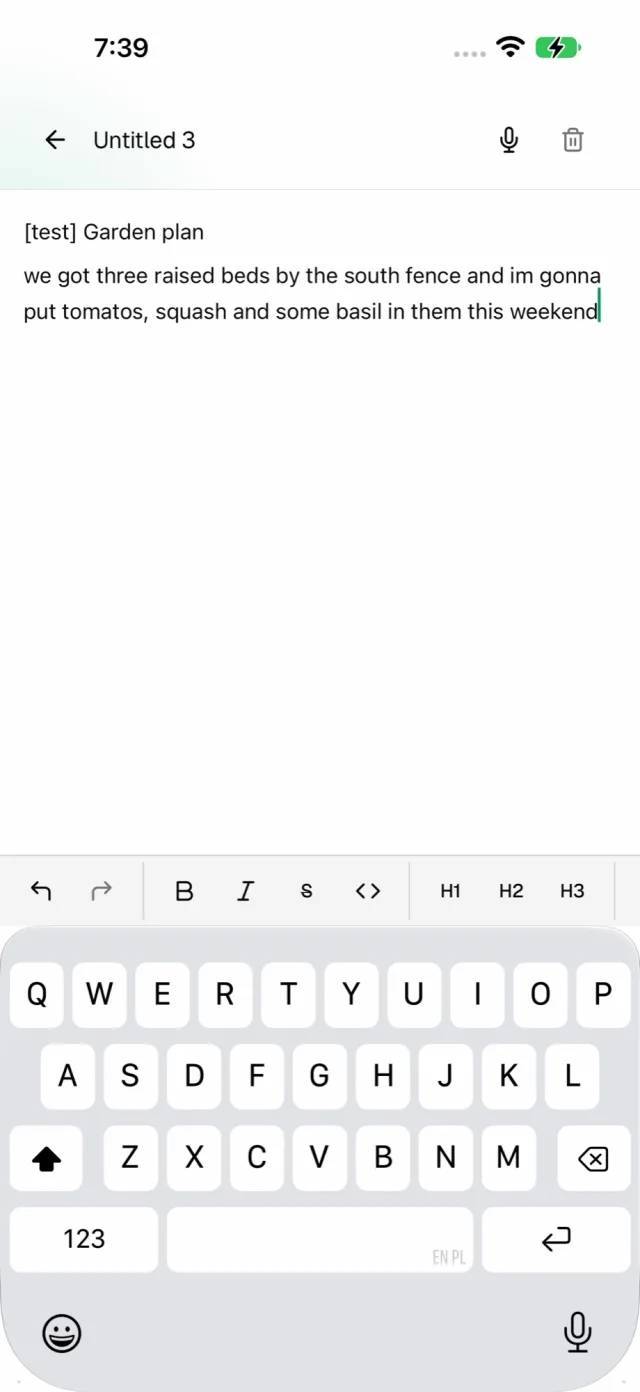
On Home, tap Notes, then New. An empty note opens with the keyboard up and a format bar above it: undo and redo, Bold, Italic, strikethrough, code, H1 to H3, lists, to-do lists, quotes, links and more.
The first line becomes the note’s title in the list. There’s no save button: the note saves as you type.
Step 2: Dictate instead of typing
Tap the microphone at the top of the note and speak. Your phone’s speech model writes it down, and Scribe formats it as Markdown: lists, quotes and paragraphs. Say “no, I meant…” and it fixes what you just said. Tap again to stop.
Dictation needs a speech model downloaded in the app. It runs on your iPhone.
Step 3: Link your notes
Type [[ or tap Link in the format bar, and Link to note lists your other notes. Pick one to link it. Tap a link to jump to that note, right to the heading it names.
Each note shows Linked from at the bottom: every note that links here, each listed once.
Step 4: Find anything
Search notes at the top of the list reads titles and the text inside. Each row in the list shows the title, the first words and when you last changed it.
Step 5: Sync with your computer
Pair your iPhone with Off Grid AI Desktop once, from Sync in both apps. The iPhone and Mac sync guide walks through it.
Once paired, notes sync both ways. Your iPhone follows the notes library on your computer, so a note you write on the train is on your desk when you get home, and the other way round. Sync for notes is on from the start.
Edited the same note in both places before they synced? You don’t lose either edit. The note shows “Two versions kept.” with Compare to open the other version.
Delete a note and it moves to the trash, on your iPhone and on your paired devices.
Your notes are files
Notes are plain Markdown files, in the same layout as the desktop library. On your computer, open them in Notes in Off Grid AI Desktop, in Obsidian, or in any text editor. Scribe underlines spelling mistakes as you write them, checked on your phone.
FAQ
Can I sync notes between my iPhone and computer without iCloud? Yes. Pair Off Grid AI on your iPhone with Off Grid AI Desktop on your Mac, Windows PC or Linux machine. Your notes sync both ways, device to device, over your own network.
What format are the notes in? Plain Markdown files, in the same layout as the desktop library. On your computer they’re ordinary files you can open in Obsidian or any editor.
Can I link notes together on my iPhone?
Yes. Type [[ or tap Link in the format bar to pick a note. Each note lists the notes that link to it under Linked from.
What happens if I edit the same note on both devices? Nothing is lost. Off Grid AI keeps both versions and shows “Two versions kept.”, with Compare to open the other one.
What do I need? An iPhone with Off Grid AI 0.0.124 or later and an Off Grid AI Pro licence. To sync, Off Grid AI Desktop 0.0.57 or later on your computer.
Related guides
- How to Proofread and Rewrite Text on Your iPhone in 2026 (Private, On-Device)
- How to Keep Private Markdown Notes With Backlinks and a Graph on Your Mac in 2026 (Opens Your Obsidian Vault)
- Best Obsidian Alternatives in 2026 (Private Markdown Notes With Local AI)
Get Off Grid AI Pro, tap Notes, and write your first note on your iPhone.