

On this page
You can have a grammar and spelling checker in every app on your Mac without sending a word to a server. Scribe, in Off Grid AI Desktop (OGAD) Pro, underlines mistakes in Mail, Notes, Slack and every text box in OGAD, and checks them on your Mac. Hover an underline and take the fix. Pause in a paragraph and Scribe offers a clearer version, written by a model on your own computer.
Cloud grammar checkers read what you type on their servers. Scribe reads it in your Mac’s memory, and the screen says so at the top: “Writing help in every text box. It runs on this computer; your writing never leaves it.”
Get Pro for $34.99 once · Download Off Grid AI for Mac
What you need
- An Apple silicon Mac.
- OGAD 0.0.57 or later. Get it from the download page.
- Off Grid AI Pro. Pro is built into the app, so there’s nothing else to install. Enter your licence key and click Activate. Pro is $34.99 once, a limited-time price down from $119, or $7.99 a month, for up to 5 devices.
- A chat model for rewrites, downloaded in Models. Spelling and grammar checks don’t need one.
Step 1: Open Scribe and try it
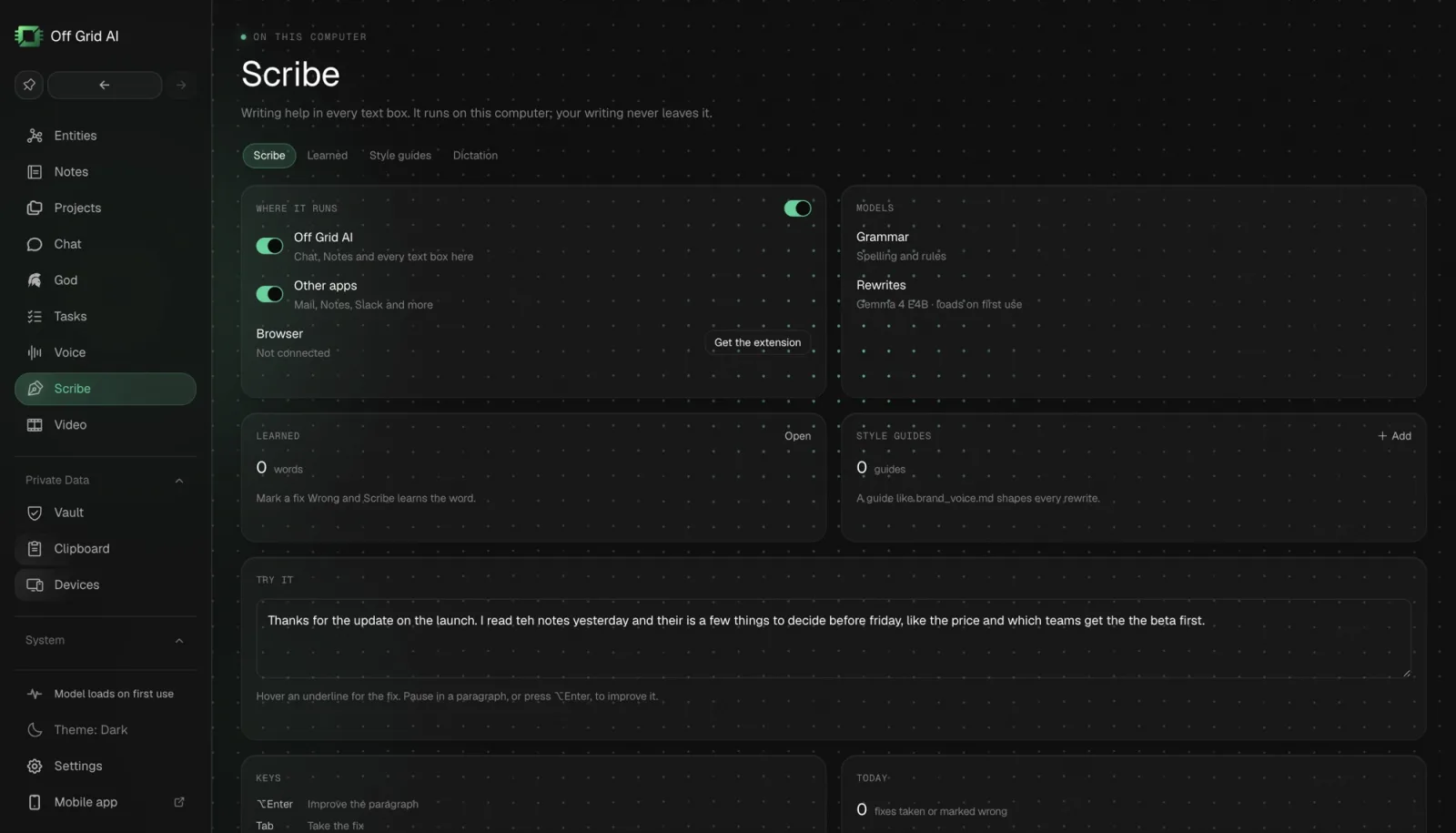
Click Scribe in the sidebar. The Scribe tab opens with a Try it box that already holds a paragraph with a few mistakes, so you see underlines at once.
Hover an underline and a card shows the fix. Press Tab to take it, Esc to close the card, and the ↑ ↓ arrows to move between issues. Every fix you take shows under Recent fixes, with where it happened and when.
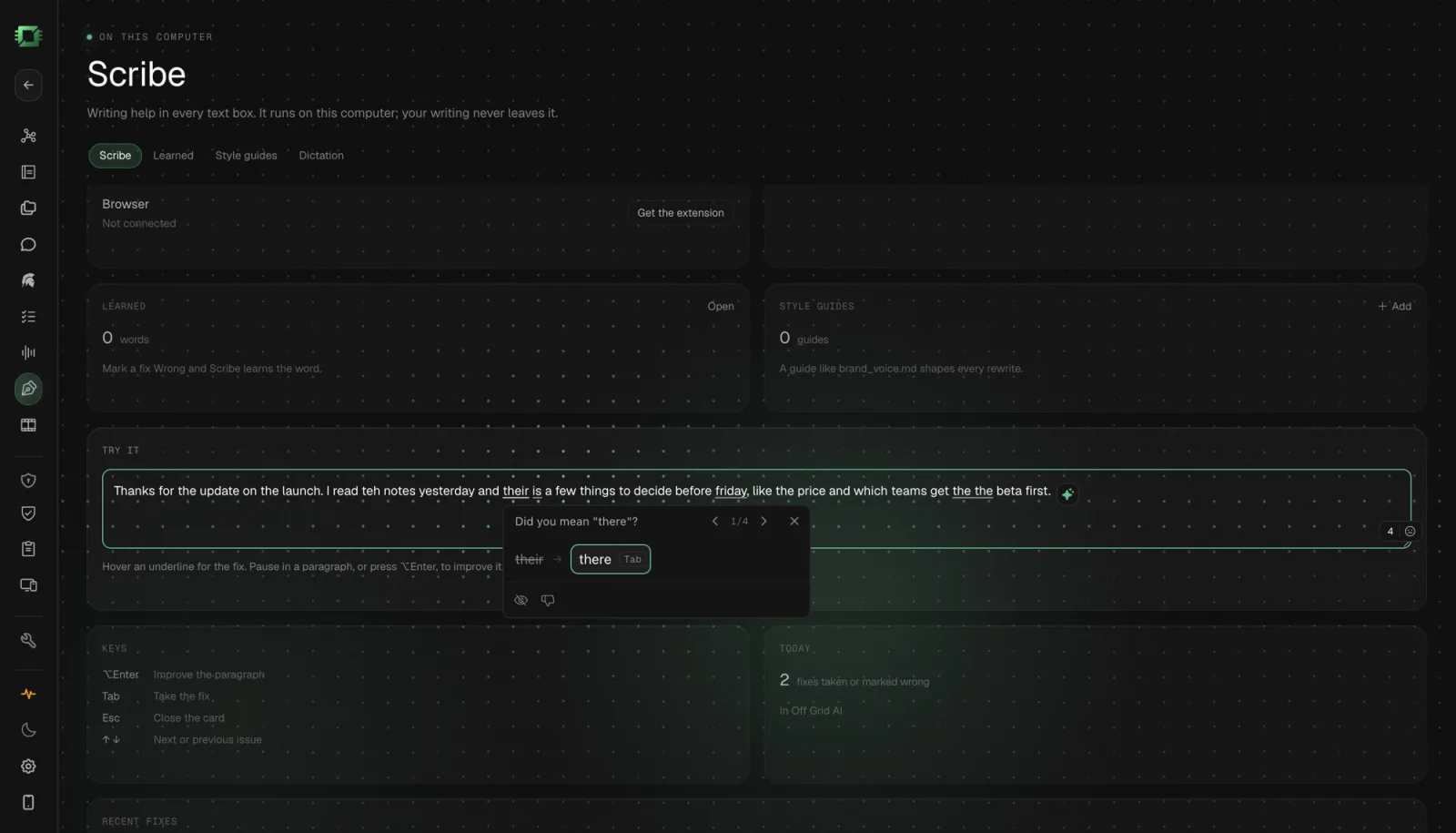
Step 2: Turn it on in your other apps
The Where it runs card has a switch for each place:
- Off Grid AI covers Chat, Notes and every text box in OGAD.
- Other apps covers Mail, Notes, Slack and more.
- Browser shows whether the Off Grid AI extension is connected.
The first time, Other apps reads “Needs Accessibility to read the text you type.” Click Allow, and System Settings opens at Privacy & Security, then Accessibility. Switch Off Grid AI on and come back. The row now reads “Mail, Notes, Slack and more” and its switch is on.
Open Mail and start a reply. Misspelled words get the same underlines as in Try it, drawn over the app’s own text box, and the fix goes straight into the email.
The switch at the top of Where it runs turns Scribe on or off everywhere at once.
Step 3: Let it improve a whole paragraph
Spelling is half the job. In an OGAD text box, pause in a paragraph or press Option+Enter, and Scribe offers an improved version of the paragraph.
Select text and a Rewrite button appears. Click it for these choices:
- Improve, Clearer, Shorter, Longer, Fix grammar, Persuasive and Translate
- A tone: Same tone, Formal, Casual, Friendly or Confident
Click Replace to swap it in.
In any other app, select the text and press Command+Option+Space. Scribe rewrites the selection on your Mac and pastes the result over it, then puts your clipboard back the way it was. This works in your browser too.
Rewrites run on the chat model you’ve loaded, and the Models card shows which one, such as “Gemma 4 E4B · loads on first use.” If it says “Rewrites need a chat model,” click Load a model.
Step 4: Teach it your words
Your client’s name isn’t a typo, and Scribe can learn that. When a fix is wrong, mark it Wrong. Scribe learns the word, and the Learned tab lists every word and preference it picked up, each one removable.
It also knows the people and projects in your Off Grid AI memory, so their names don’t get flagged.
Step 5: Give it a style guide
If your team has a voice, give Scribe the file. Open Style guides, click Add a guide (.md) and pick a Markdown or text file, such as brand_voice.md. That guide shapes every rewrite, and you can switch each guide on or off.
Where Scribe stays quiet
Scribe reads prose, so it leaves alone the places that hold none:
- Secure password fields and password managers
- Terminals and code editors
- Spreadsheets, Finder and settings
- Search fields and rename boxes
If something doesn’t work
| What you see | Why | Fix |
|---|---|---|
| Other apps says it needs Accessibility | macOS hasn’t allowed it yet | Click Allow and switch Off Grid AI on in Accessibility |
| No underlines in one app | That app holds code, numbers or passwords | That’s on purpose, Scribe skips those apps |
| “Rewrites need a chat model” | No chat model is loaded | Click Load a model and download one |
| Command+Option+Space does nothing | No text is selected | Select at least a word first |
| The Scribe tab shows the upgrade screen | Pro isn’t active | Enter your licence key and click Activate |
FAQ
Is there a grammar checker that works in every app on a Mac without uploading my text? Yes. Scribe in Off Grid AI Desktop Pro underlines spelling and grammar in Mail, Notes, Slack and other Mac apps, and checks the text on your Mac. Your writing never leaves it.
Why does Scribe ask for Accessibility on my Mac? macOS only lets an app read the text you type in other apps through Accessibility. Scribe uses it to read the focused text box and draw underlines over it. Click Allow next to Other apps and switch Off Grid AI on in System Settings.
Does Scribe check my passwords or code? No. It skips secure password fields, and it leaves terminals, code editors, spreadsheets, Finder and password managers alone, because they hold no prose.
Can it rewrite a sentence, not just fix spelling? Yes. Pause in a paragraph or press Option+Enter to improve it, or select text in any app and press Command+Option+Space. Rewrites use a local chat model on your Mac, such as Gemma 4 E4B.
What do I need? An Apple silicon Mac, Off Grid AI Desktop 0.0.57 or later, and an Off Grid AI Pro licence. Rewrites also need a chat model downloaded in Models.
Related guides
- How to Rewrite Any Text in Your Own Voice on Your Mac in 2026 (One Shortcut, No Cloud)
- How to Dictate Into Any Mac App With Local AI in 2026 (No Cloud Transcription)
- Best Private Grammarly Alternatives in 2026 (Grammar Checks That Stay on Your Computer)
Get Off Grid AI Pro, open Scribe and allow Other apps. Your next email gets checked on your Mac.