

On this page
You can rewrite any text on your Mac in your own voice without pasting it into a chatbot. Select it in any app, press Command+Option+Space, and Scribe in Off Grid AI Desktop (OGAD) Pro rewrites it with a model on your Mac and pastes it back over your selection. Give Scribe your style guide once, and every rewrite follows it.
It’s for the email that reads stiff, the update that rambles and the reply you want shorter before you send it. Your draft goes to the model in your Mac’s memory, not to a server.
Get Pro for $34.99 once · Download Off Grid AI for Mac
What you need
- An Apple silicon Mac with OGAD 0.0.57 or later. Get it from the download page.
- Off Grid AI Pro, built into the app. Enter your licence key and click Activate. Pro is $34.99 once, a limited-time price down from $119, or $7.99 a month, for up to 5 devices.
- A chat model, downloaded in Models. Open Scribe and the Models card shows the one rewrites use, such as “Gemma 4 E4B · loads on first use.” If it reads “Rewrites need a chat model,” click Load a model.
- Accessibility, so Scribe can read your selection in other apps. In Scribe, click Allow next to Other apps and switch Off Grid AI on in System Settings.
Step 1: Rewrite in any app
- Write a draft in Mail, Notes, Slack or a web page.
- Select the part you want rewritten.
- Press Command+Option+Space.
Scribe reads the selection, improves it on your Mac and pastes the new text over the old. Your clipboard goes back to what it held. If the result isn’t right, press Command+Z in that app to undo the paste.
Step 2: Choose how it rewrites
Inside OGAD, in Chat, Notes or any text box, select text and click the Rewrite button that appears. The card gives you two rows of choices.
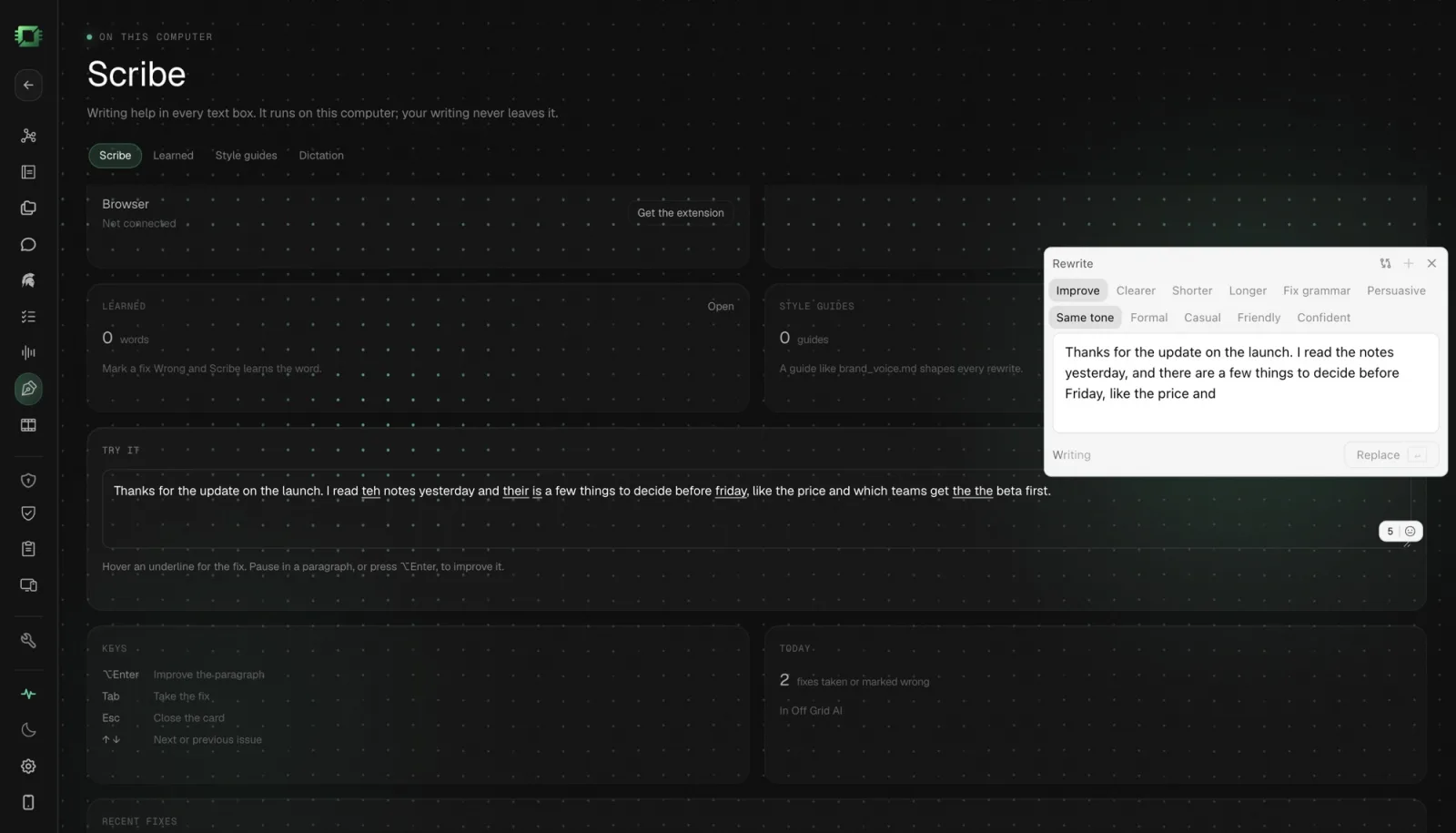
What to do with it:
| Choice | What you get |
|---|---|
| Improve | The same message, clearer and smoother |
| Clearer | Simpler words and shorter sentences |
| Shorter | The same points in fewer words |
| Longer | More detail where it’s thin |
| Fix grammar | Mistakes fixed, wording kept |
| Persuasive | Written to win the reader over |
| Translate | The text in another language |
How it sounds: Same tone, Formal, Casual, Friendly or Confident.
You can mix them, such as Shorter in a Friendly tone. The new version shows in the card before anything changes. Click Replace to put it in your text.
Got a wall of text? Improve lays it out by itself, in short paragraphs and real lists, using your own words.
You can also pause in a paragraph, or press Option+Enter, and Scribe offers an improved version of that paragraph.
Step 3: Make it sound like you
A rewrite that sounds like a model is no use. Two things keep it yours.
Style guides. Open the Style guides tab and click Add a guide (.md). Pick a Markdown or text file that describes how you write: words you use, words you avoid, how long your sentences run. Scribe reads it before every rewrite. A brand_voice.md for work and a personal guide can live side by side, and each has its own switch.
If you don’t have a guide yet, write one from your own emails. This guide shows how.
Learned words. When Scribe flags a name or a term you use on purpose, mark the fix Wrong. Scribe learns it, and the Learned tab lists every word and preference it picked up, each removable. The people and projects in your Off Grid AI memory are known already, so their names stay as you wrote them.
Example: a stiff email, made friendly
Suppose you’ve written: “Per our discussion, please find attached the revised proposal. Kindly revert with your feedback at your earliest convenience.”
Select it in Mail and press Command+Option+Space, and Scribe swaps in an improved version shaped by your style guide. Want more control? Paste it into a note in OGAD, select it, click Rewrite and pick Shorter with Friendly. You get something closer to how you’d say it out loud. Read it, and click Replace if it’s right.
If something doesn’t work
| What you see | Why | Fix |
|---|---|---|
| Command+Option+Space does nothing | No text selected, or Accessibility is off | Select text, then click Allow next to Other apps |
| “Rewrites need a chat model” | No chat model loaded | Click Load a model |
| The first rewrite is slow | The model loads on first use | Later rewrites start faster |
| Rewrites ignore your guide | The guide is switched off | Turn it on in Style guides |
FAQ
How do I rewrite selected text in any app on a Mac with AI? With Scribe in Off Grid AI Desktop Pro, select the text in any app and press Command+Option+Space. A chat model on your Mac rewrites it and pastes the result over your selection.
Can the AI follow my company’s style guide?
Yes. In Scribe, open Style guides, click Add a guide (.md) and pick your guide as a Markdown or text file, such as brand_voice.md. Every rewrite follows it, and you can switch each guide on or off.
Does my text go to a cloud AI? No. Rewrites run on a chat model you download to your Mac, such as Gemma 4 E4B. The text never leaves your Mac.
Can it change the tone or translate? Yes. Select text in Off Grid AI and click Rewrite to pick Improve, Clearer, Shorter, Longer, Fix grammar, Persuasive or Translate, and a tone: Formal, Casual, Friendly or Confident.
What do I need? An Apple silicon Mac, Off Grid AI Desktop 0.0.57 or later, an Off Grid AI Pro licence and a chat model downloaded in Models.
Related guides
- How to Check Grammar and Spelling in Every App on Your Mac in 2026 (Private, On-Device)
- How to Turn Your Own Writing Samples Into a Reusable AI Style Guide in 2026
- How to Dictate Into Any Mac App With Local AI in 2026 (No Cloud Transcription)
Get Off Grid AI Pro, add your style guide in Scribe, and press Command+Option+Space on the next email you’re unsure about.